



In Cloud Office, you can view your own calendars and other people’s, as well as resource calendars.
Resources are shared objects that can be invited to meetings and appointments. In practice, these are usually meeting rooms, devices and workstations that have to be booked.
For example, you can use the resource calendar to check whether a meeting room is available at a certain time.
Add resource calendar
- Log into Cloud Office using your e-mail address and password.
- Open the Calendar app in the menu.
- Under “My calendars”, click “+” and select “Add new resource calendar”.
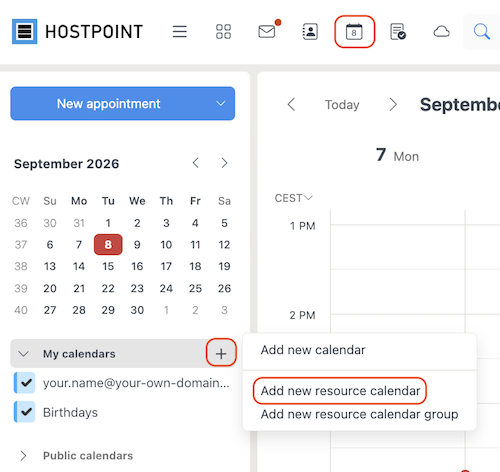
→ The following window displays all available resources. - Select the desired resource and then click “Select”.
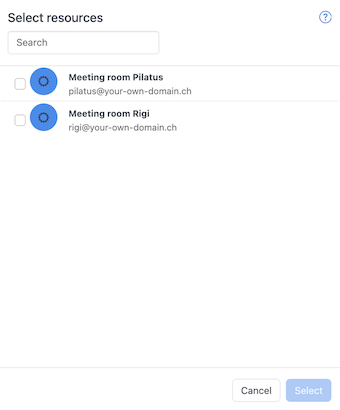
Info: Note: If you don’t see any resources, it means there are no resources yet. The article “How do I log into Cloud Office as an administrator?” describes how to create resources.
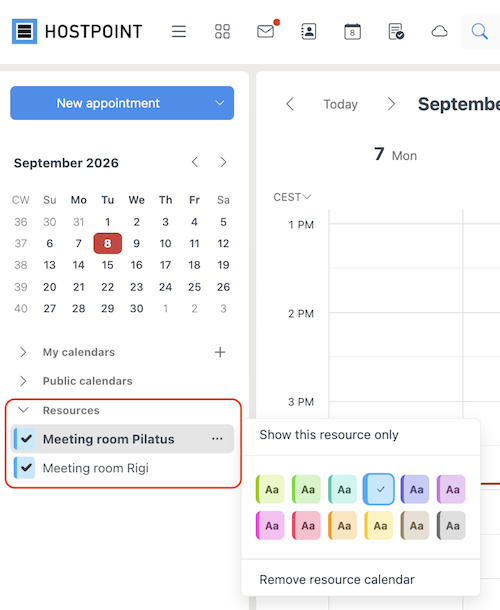
→ The resource calendar is displayed at the very bottom of the calendar list under “Resources”, where you can show or hide the calendar and assign it a color.
Grouping resource calendars
If you regularly use several resources of the same type, such as several meeting rooms, you can combine them in a resource calendar group.
To do so, click on “+” under “My calendars” and add a new resource calendar group. This allows you to clearly combine several resources and show or hide their calendars together.

For support requests please use this form instead.

