



Introduction
WordPress may become unavailable or display a critical error after a plugin or theme has been installed or updated.
If this is the case for your website, you can deactivate the affected plugin or theme either via FTP or via the explorer in the Hostpoint Control Panel. The following sections show you how to do this.
Deactivating a plugin or theme via the Hostpoint Control Panel
- Log in to the Hostpoint Control Panel with your Hostpoint ID.
- Open the web hosting account that you use to manage your WordPress website.
- Click “Explorer” in the menu.
- Open the directory of your WordPress website (e.g. www/your-own-domain.ch).
- Navigate to the folder where the plugins or themes are stored:
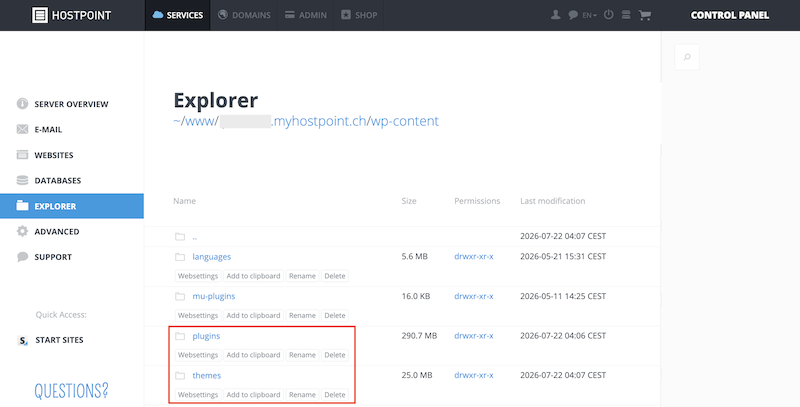
- Plugins: /wp-content/plugins
- Themes: /wp-content/themes
- You now have two options:
- Deactivate all plugins: if you’re not sure which plugin is causing the error, rename the entire plugins folder (e.g. plugins → plugins-disabled).
- Deactivate a specific plugin or theme: if you know which plugin or theme is causing the error, just rename the corresponding folder (e.g. contact-form-7 → contact-form-7-disabled).
- Now try to log in to the WordPress backend again.
Note: if your website is still unavailable after deactivating a plugin or theme, the issue could be due to another extension or a faulty WordPress installation. In this case, we recommend running another error analysis using the WordPress error logs. - Depending on whether you have deactivated plugins or themes, proceed as follows:
- Plugins: open the “Plugins” menu item in the WordPress backend. If you have deactivated all plugins, no more plugins will be displayed. If you have only deactivated one plugin, it will be displayed as “deactivated”.
- Themes: Go to “Appearance” > “Themes” and activate a different theme than the one you deactivated before.
- Then rename the renamed folder back to its original name (e.g. plugins-disabled → plugins or contact-form-7-disabled → contact-form-7).
- Only for plugins: then re-activate the plugins individually, checking after each activation whether the error occurs again. This allows you to unequivocally identify the faulty plugin.
- Only for plugins: remove the affected plugin via the WordPress backend and reinstall it or select an alternative plugin.
Deactivating a plugin or theme via FTP
Alternatively, you can also deactivate plugins or themes via FTP. In order to do this, FTP access needs to have been set up for your web hosting account in the Hostpoint Control Panel.
- Use an FTP program to connect to your web hosting.
- Open the directory of your WordPress website (e.g. www/your-own-domain.ch).
- Navigate to the folder where the plugins or themes are stored:
- Plugins: /wp-content/plugins
- Themes: /wp-content/themes
- You now have two options:
- Deactivate all plug-ins: if you’re not sure which plugin is causing the error, rename the entire plugins folder (e.g. plugins → plugins-disabled).
- Deactivate a specific plugin or theme: if you know which plugin or theme is causing the error, just rename the corresponding folder (e.g. contact-form-7 → contact-form-7-disabled).
- Now try to log in to the WordPress backend again.
Note: if your website is still unavailable after deactivating a plugin or theme, the issue could be due to another extension or a faulty WordPress installation. In this case, we recommend running another error analysis using the WordPress error logs. - Depending on whether you have deactivated plugins or themes, proceed as follows:
- Plugins: open the “Plugins” menu item in the WordPress backend. If you have deactivated all plugins, no more plugins will be displayed. If you have only deactivated one plugin, it will be displayed as “deactivated”.
- Themes: Go to “Design” > “Themes” and activate a different theme than the one you deactivated before.
- Then rename the renamed folder back to its original name (e.g. plugins-disabled → plugins or contact-form-7-disabled → contact-form-7).
- Only for plugins: then re-activate the plugins individually, checking after each activation whether the error occurs again. This allows you to unequivocally identify the faulty plugin.
- Only for plugins: remove the affected plugin via the WordPress backend and reinstall it or select an alternative plugin.

Please use this form only to provide feedback on the above guide.
For support requests please use this form instead.
For support requests please use this form instead.

